
Private access
By default your maps will be completely private – only you can access the Edit and Live View versions with your individual login.
Password protected access

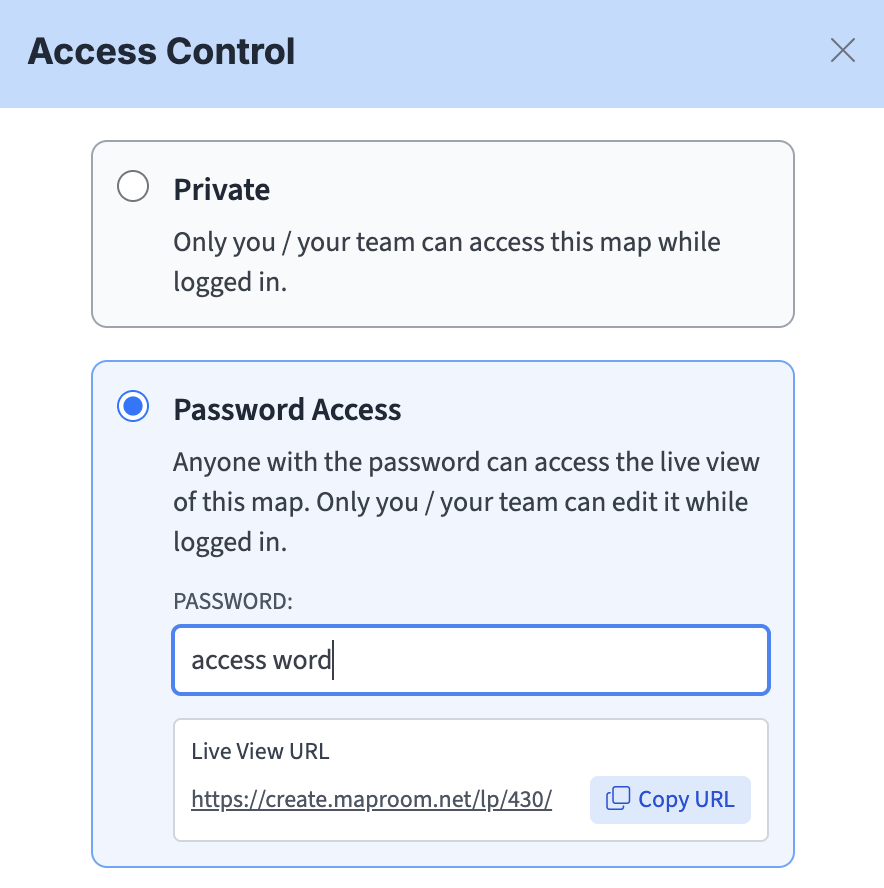
You can set a password for any map at any time, which will let others view the clean Live View of that map without giving them access to the editing tools or any other part of your account. On the top bar of the Edit screen click change access. This will open up a window where you can switch to password access.
You can set any password you want. It can be one word or several words, or a number or mix of characters.
The password will be case sensitive.
You can set the same password for multiple maps.
Be sure to give guests the Live View URL, not your editing screen URL (which has /edit/ on the end), which they won’t be able to access.
You can also embed a password protected map on your website for testing, or to limit access within your own web hosting environment. (See embed code.)
Team access
Team access is a good solution if you want multiple people to have different responsibilities over viewing and editing maps.
A team will be able to view and edit each other’s maps. However, only the team owner will have access to the account billing and the ability to invite and change team members.
You can set up a team at any time in Create a Team.
Team setup, management and billing can become complex. Please contact us for advice especially if you want to build one or more teams with centralised billing for multiple seats.
Public access
The Live View of your map can also be made fully public and embedded on your website. See Going Public.