
You have the option to add your company logo at the top of the key, which will show up in the Edit and Live Views. Click Settings on the top bar, then the Upload Logo button, or, if you have uploaded your logo previously, the Select from Library button. Save & Close, and your logo will load in place at the top of the key.


Change colour opacity
Also in Settings, you can experiment with stronger or more transparent colours.
Colours are added to the map at a default 0.5 (50%) opacity strength. This medium transparency effect allows place names and other base map details to show legibly through the colour without being intrusive.

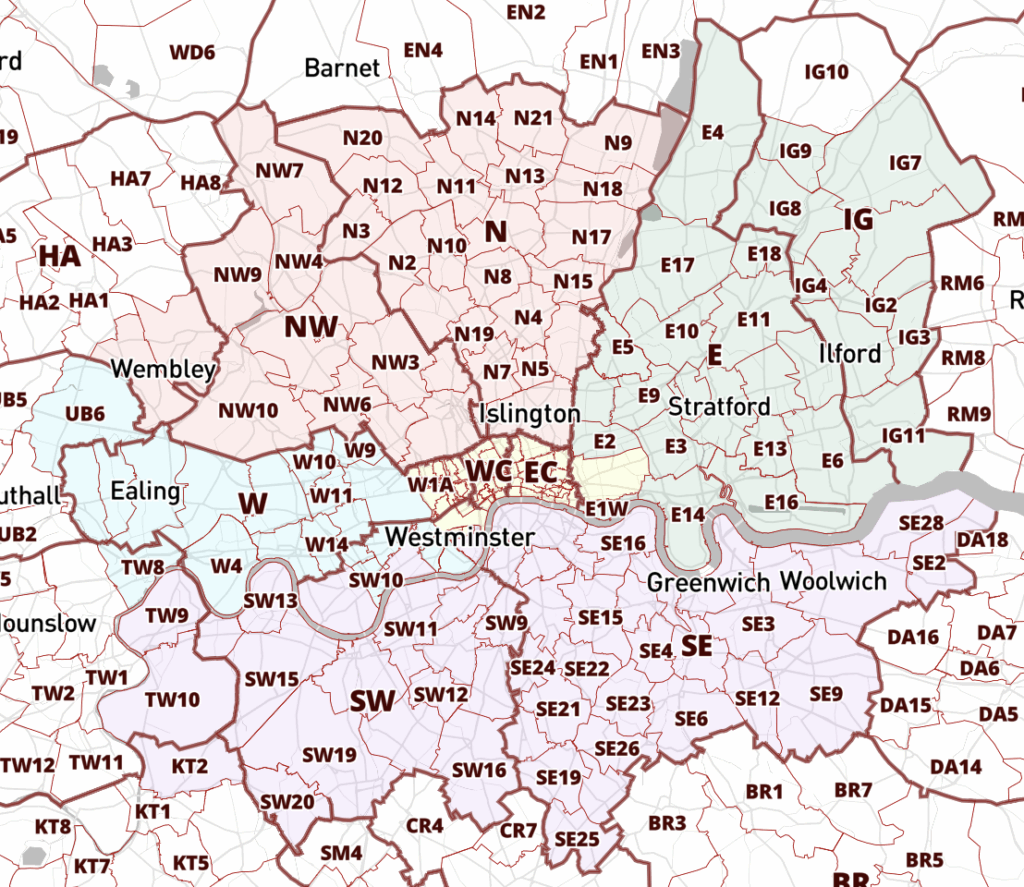

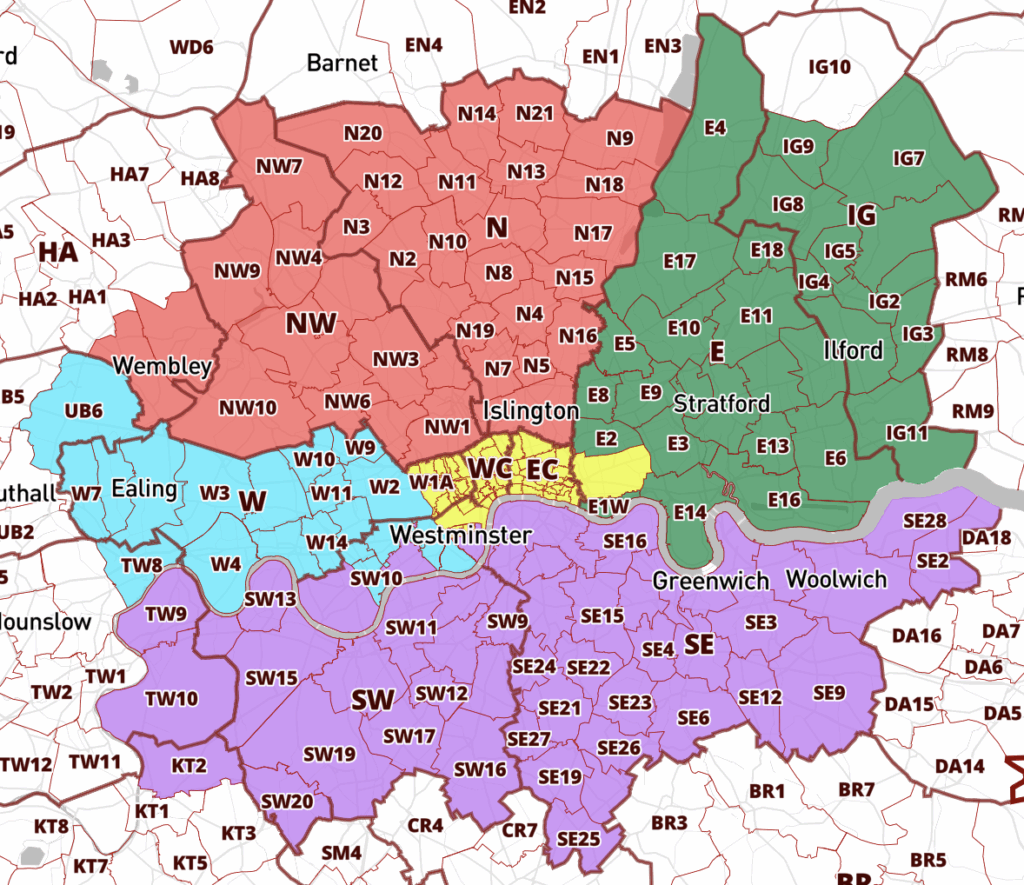
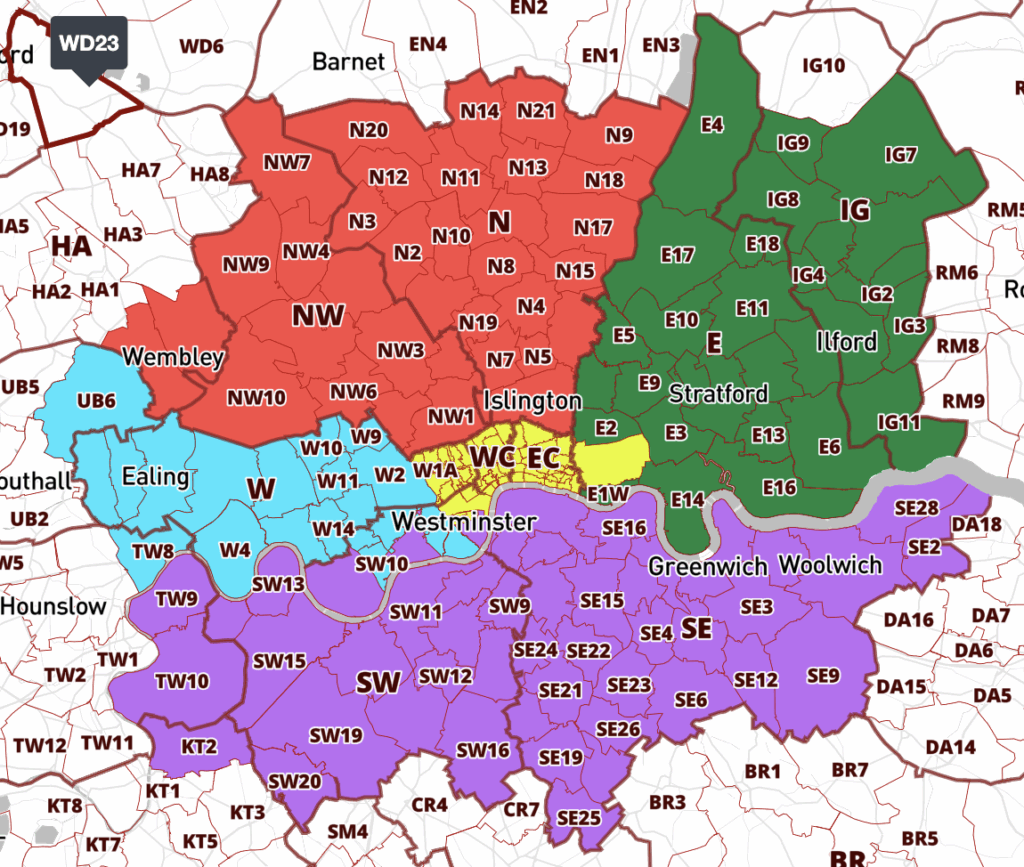
At 1.0 (100%) opacity, your postcode colours will be completely opaque and you will not be able to see the underlying place names, roads, buildings and other geographic details even when zoomed in to street level.
Going lighter will give a more refined colouring effect, with the background details giving all the geographic context you may need for postcode selection.
Hide the title
Usually it’s good to display a map title, but you may want to remove the title view in Settings if you’ve added a company logo, or for any other reason.